
Connecting Stripe Identity
Connect stripe identity to verify customers identitys before pickup
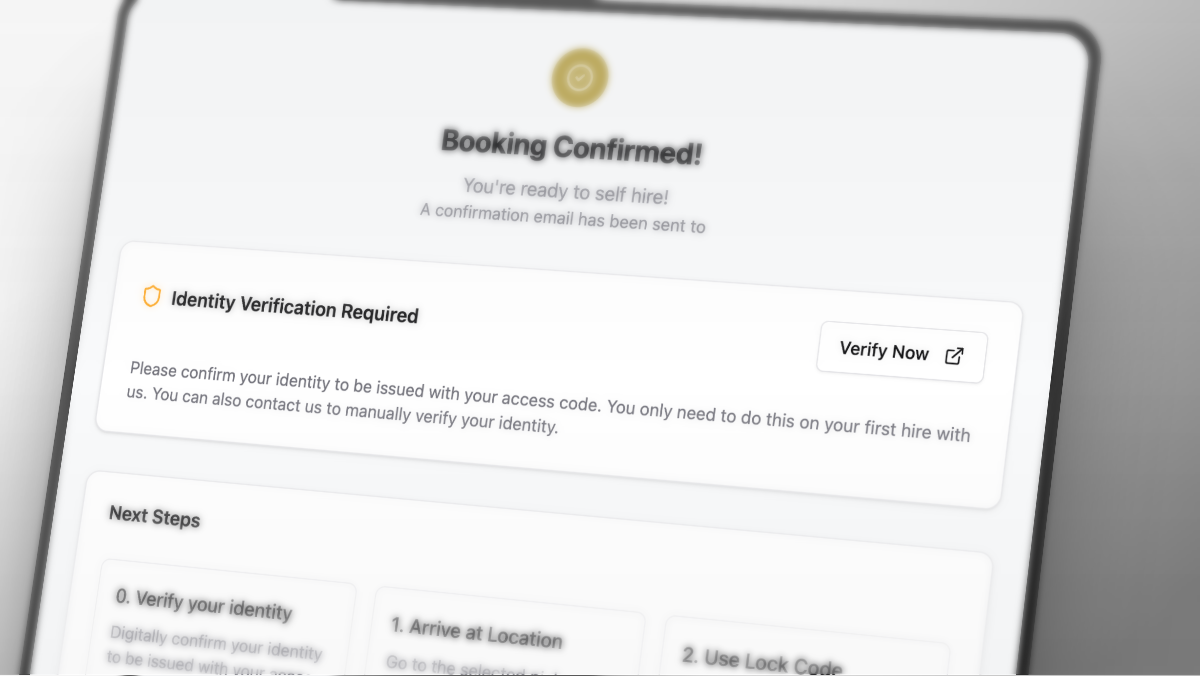
To use Stripe Identity verification within Lockii, you need to securely connect your Stripe account by creating a restricted API key with the correct permissions. This keeps your account secure while Lockii verifies customers automatically before pickup.
Once connected, customers complete identity checks on their phone. Lockii hides lock codes until verification passes, so hires only go ahead when identity requirements are met.
In the app: Settings → Integrations → Identity
Guided setup
Lockii walks you through setup in a three-step wizard. Click Stripe Identity under Settings → Integrations → Identity to open it.
Step 1 — Activate Stripe Identity
Open the Stripe Identity application and submit your business details.
Wait for Stripe to approve Identity on your account.
Optional: customize branding on the Identity branding settings page.
Check the box to confirm Identity is applied for (or already enabled), then continue.
Step 2 — Create a restricted API key
Go to Create restricted key in the Stripe Dashboard.
Name the key something clear, for example
Lockii Identity.Under Identity, set Verification Sessions and Reports to Write.
Click Create key, complete 2FA if prompted, then copy the key immediately. Stripe only shows it once.
Check the box to confirm you created the key, then continue.
Lockii needs a restricted key (rk_…), not your secret key. Restricted keys limit what Lockii can access in your Stripe account.
Step 3 — Connect and configure
Paste the restricted key into Lockii.
Set your verification rules (see below).
Click Save & Connect.
You can reopen the setup wizard any time from Settings → Integrations → Identity to adjust rules or rotate your key.
Verification rules
After you paste your API key, Lockii shows verification rules you can tune before saving:
Accepted documents
Driver licence
ID card
Passport
Verification checks
Require Matching Customer Selfie — customer must take a selfie that matches their ID photo
Disable Document Uploads — require live camera capture instead of uploaded photos
Social Security Check (US Only) — collect and verify an ID number against the document
Customer Name Matching — reject verification when the name on the ID does not match the name on the booking. Lockii compares names in memory only and never stores the name from the ID.
Minimum age
Set a minimum age if your hire policy requires customers to be above a certain age (for example 21 for vehicle hires). Leave blank for no Lockii age filter. Stripe still enforces a minimum age of 18 for identity verification.
When you set a minimum age above zero, ID card is disabled as an accepted document type. Driver licence and passport remain available.
After Stripe verifies a customer, Lockii checks their date of birth against your minimum age. Customers under the limit see a clear message like "You must be at least 21 years old to complete this rental" and cannot proceed until they meet the requirement.
Allowed countries
Enter ISO country codes for accepted ID issuing countries (for example US, AU, NZ). Leave blank to accept all countries.
Advanced options
Verification Flow ID (optional) — use a custom Stripe Dashboard verification flow instead of Lockii's document check settings. Lockii country filters still apply after verification.
Rules save when you click Save & Connect.
Customer Name Matching
When Customer Name Matching is enabled, Lockii compares the name the customer entered on the booking with the name Stripe reads from their ID document.
If the names match (including common variations like nicknames, middle names, or minor spelling differences), verification continues as normal.
If the names do not match, the customer sees a clear message asking them to verify with the ID of the person named on the booking. Lock codes stay hidden until verification passes.
If the booking name looks like a business name (for example "Acme Hire Co"), Lockii allows an employee's personal ID to pass. This covers legitimate company bookings verified by a staff member's licence.
Lockii never stores the name from the ID document. Only the verification session reference, expiry date, and issuing country are kept on the customer record.
Turn this on when you want an extra check that the person picking up is the same person who booked. It runs automatically after Stripe approves the document.
What customers see
When identity verification is required, customers start from their booking confirmation page (https://book.lockii.app/{your-company}/confirmation/{orderId}).
Customer taps Verify Identity on the confirmation page.
Lockii opens Stripe's verification flow on their phone.
After Stripe finishes, the customer lands on a dedicated verification page (
https://book.lockii.app/{your-company}/verification/{orderId}).Lockii checks the result automatically and redirects them back to the confirmation page when verification passes.
If verification fails, the customer sees a clear reason on the verification page and can try again or contact support. Lock codes stay hidden until verification succeeds.
Lockii can also reject a verified identity that does not meet your rules. Common reasons include an ID from a country you do not accept, a customer who is under your minimum age, or a name that does not match the booking when Customer Name Matching is enabled. The customer sees a plain-language explanation and can retry with a different document where applicable.
Managing verification on a customer profile
Open any customer in the dashboard. The Identity Verification panel appears when identity verification is enabled.
From there you can:
Generate Verification Link — create a link for the customer to complete verification on their phone
Manually Verify — mark a customer as verified for one year when you have already confirmed identity offline
View Verification — open the Stripe verification session for automatically verified customers
Mark as unverified — clear verification if you need the customer to re-verify
Staff actions here are for exceptions. The default path is the automated customer flow on the confirmation page.
Mobile app
Staff can manage identity verification from a customer profile in the Lockii mobile app:
Open a customer from Search or a booking.
Scroll to the Identity verification section.
Tap to generate a verification link. Lockii copies the link to your clipboard and opens the share sheet so you can text or email it to the customer on the spot.
For verified customers, tap to view the Stripe verification session.
Use Mark verified or Mark as unverified when you need to override the automated result.
Customers complete verification in their mobile browser, not in a customer mobile app.
See Lockii Mobile App for more on the operator app.
Security reminder
Keep your key private. Treat it like a password.
You can revoke or rotate the key any time in the Stripe Dashboard.
Use restricted keys. Never share your full secret key with unnecessary permissions.
Tips
Test the full flow yourself: book, verify identity on your phone, and confirm the lock code appears on the confirmation page.
Pair this with Connecting Insurance Verification when you need both identity and insurance checks before pickup.
Use Disable Document Uploads when you want customers to capture their ID live on camera.
Keep allowed countries tight if your hire policy only accepts certain ID issuing regions.
Set a minimum age when your hire type has a legal age requirement. Lockii enforces it automatically after Stripe verifies the customer.
Enable Customer Name Matching when you want to confirm the person verifying their ID is the same person named on the booking.
Was this helpful?